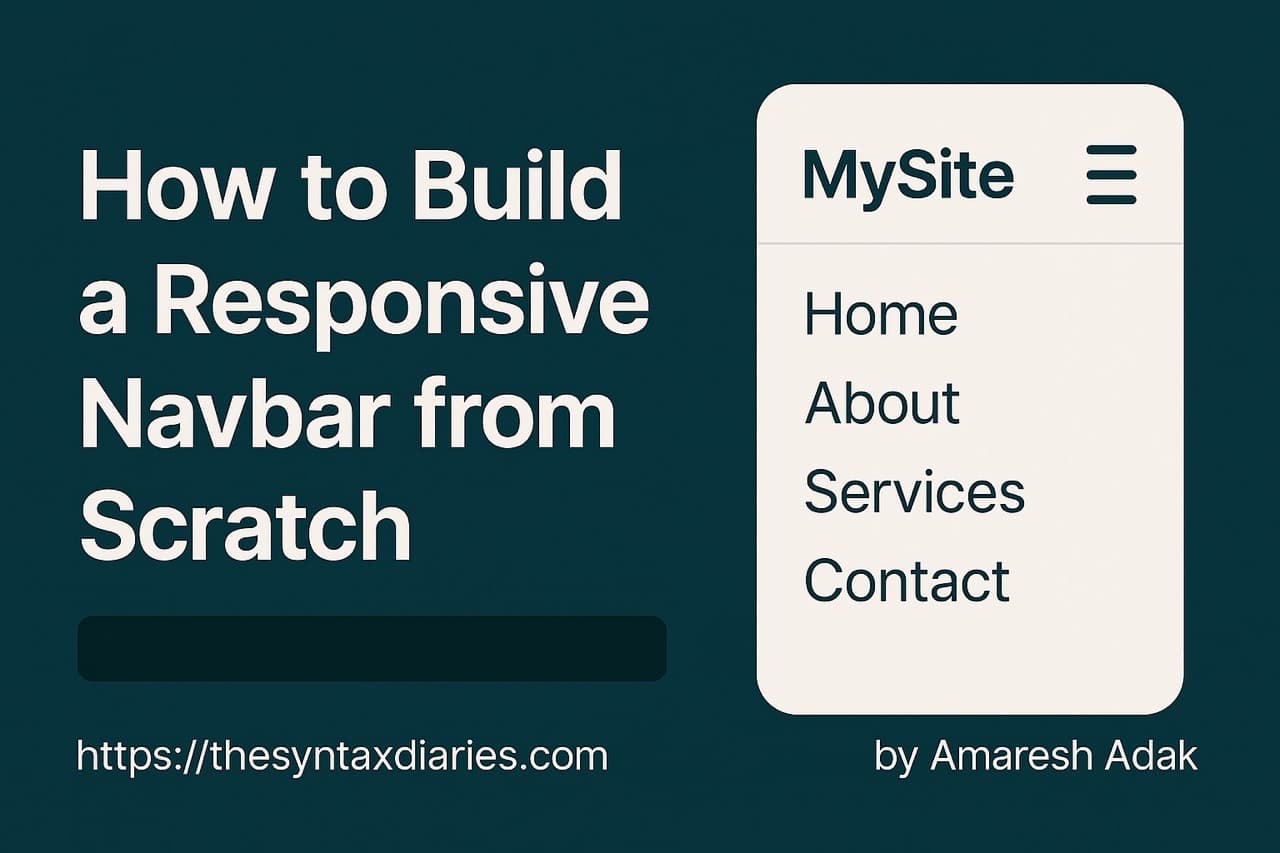
How to Build a Responsive Navbar from Scratch (HTML, CSS, JS)
Learn how to create a responsive navigation bar from scratch using plain HTML, CSS, and JavaScript — including a working mobile menu with a hamburger icon.
 By Amaresh Adak23 min read
100% private · no tracking · works offline100% client-side/no data leaves your browser/no accounts/works offline
Learn how to create a responsive navigation bar from scratch using plain HTML, CSS, and JavaScript — including a working mobile menu with a hamburger icon.
By Amaresh Adak23 min readFree toolkit
85+ private dev tools
Everything runs in your browser. Zero tracking, no sign-up.
Browse toolsEvery website needs a clean, mobile-friendly navbar — but building one from scratch can be tricky. In this beginner-friendly tutorial, you'll learn how to create a fully responsive navbar using just HTML, CSS, and JavaScript — no frameworks, no libraries, just the real stuff.
If you've ever struggled with hamburger menus or making your navigation look good on both desktop and mobile, this guide is for you. By the end, you'll have a professional-looking navbar that works perfectly across all devices.
Before we dive in, let's take a look at what we're creating:
Demo Link - Check out the live version
Here's what our navbar includes:
First, let's create our project structure. It's super simple:
project/
├── index.html
├── style.css
└── script.js
Now let's build this navbar step by step with detailed explanations of each component.
Let's start by creating the basic HTML structure for our navbar:
<!DOCTYPE html>
<html lang="en">
  <head>
    <meta charset="UTF-8" />
    <meta name="viewport" content="width=device-width, initial-scale=1.0" />
    <title>Responsive Navbar</title>
    <link rel="stylesheet" href="style.css" />
  </head>
  <body>
    <header class="navbar">
      <div class="logo">
        <a href="#">MySite</a>
      </div>

      <nav class="nav-menu">
        <ul class="nav-links">
          <li><a href="#" class="active">Home</a></li>
          <li><a href="#">About</a></li>
          <li><a href="#">Services</a></li>
          <li><a href="#">Projects</a></li>
          <li><a href="#">Contact</a></li>
        </ul>
      </nav>

      <div class="hamburger">
        <span class="bar"></span>
        <span class="bar"></span>
        <span class="bar"></span>
      </div>
    </header>

    <main>
      <!-- Your page content goes here -->
      <div class="content">
        <h1>Welcome to MySite</h1>
        <p>Resize the browser window to see the responsive navbar in action!</p>
      </div>
    </main>

    <script src="script.js"></script>
  </body>
</html>
Let's break down each part of our HTML structure to understand its purpose:
Document Structure
<!DOCTYPE html> declaration<html lang="en"> to specify the language for accessibility<head> section, we include:
<meta charset="UTF-8"><meta name="viewport" content="width=device-width, initial-scale=1.0"> - this is crucial for mobile responsivenessNavbar Container
<header> element with class "navbar" as the main container<header> is better for SEO and accessibility than a generic <div>Logo Section
<div> with class "logo" containing an anchor link<a> tag makes the logo clickable, typically linking back to the homepageNavigation Menu
<nav> element with class "nav-menu" to contain our navigation links<ul> with class "nav-links"<li> containing an anchor <a> tagHamburger Menu
<div> with class "hamburger" will serve as our mobile menu toggle<span> elements with class "bar" that will create the visual hamburger iconPage Content
<main> element with example contentJavaScript Link
This structure follows best practices by:
Now let's add the CSS to make our navbar look good on desktop. We'll go through each section of the CSS in detail:
/* Reset some default browser styles */
* {
  margin: 0;
  padding: 0;
  box-sizing: border-box;
  font-family: 'Segoe UI', Tahoma, Geneva, Verdana, sans-serif;
}

body {
  background-color: #f5f5f5;
}

/* Basic content styling for demo */
.content {
  max-width: 1200px;
  margin: 100px auto 0;
  padding: 0 20px;
  text-align: center;
}

.content h1 {
  margin-bottom: 20px;
  color: #333;
}

/* Navbar Styles */
.navbar {
  position: fixed;
  top: 0;
  left: 0;
  width: 100%;
  background-color: #2c3e50;
  display: flex;
  justify-content: space-between;
  align-items: center;
  padding: 0 2rem;
  height: 70px;
  box-shadow: 0 2px 10px rgba(0, 0, 0, 0.1);
  z-index: 1000;
}

/* Logo Styles */
.logo a {
  color: white;
  font-size: 1.5rem;
  font-weight: 700;
  text-decoration: none;
  transition: all 0.3s ease;
}

.logo a:hover {
  color: #3498db;
}

/* Navigation Menu Styles */
.nav-links {
  display: flex;
  list-style: none;
}

.nav-links li {
  margin-left: 2rem;
}

.nav-links a {
  color: #ecf0f1;
  text-decoration: none;
  font-size: 1rem;
  font-weight: 500;
  padding: 0.5rem 0;
  transition: all 0.3s ease;
  position: relative;
}

.nav-links a:hover {
  color: #3498db;
}

/* Active link indicator */
.nav-links a.active {
  color: #3498db;
}

.nav-links a.active::after {
  content: '';
  position: absolute;
  bottom: -3px;
  left: 0;
  width: 100%;
  height: 2px;
  background-color: #3498db;
}

/* Hamburger Menu */
.hamburger {
  display: none;
  cursor: pointer;
}

.bar {
  display: block;
  width: 25px;
  height: 3px;
  margin: 5px auto;
  background-color: white;
  transition: all 0.3s ease;
}
/* Reset some default browser styles */
* {
  margin: 0;
  padding: 0;
  box-sizing: border-box;
  font-family: 'Segoe UI', Tahoma, Geneva, Verdana, sans-serif;
}

body {
  background-color: #f5f5f5;
}
box-sizing: border-box on all elements to make sizing more predictable. This ensures padding and borders are included in an element's total width and height/* Basic content styling for demo */
.content {
max-width: 1200px;
margin: 100px auto 0;
padding: 0 20px;
text-align: center;
}
.content h1 {
margin-bottom: 20px;
color: #333;
}
/* Navbar Styles */
.navbar {
  position: fixed;
  top: 0;
  left: 0;
  width: 100%;
  background-color: #2c3e50;
  display: flex;
  justify-content: space-between;
  align-items: center;
  padding: 0 2rem;
  height: 70px;
  box-shadow: 0 2px 10px rgba(0, 0, 0, 0.1);
  z-index: 1000;
}
display: flex with justify-content: space-between and align-items: center to:
/* Logo Styles */
.logo a {
  color: white;
  font-size: 1.5rem;
  font-weight: 700;
  text-decoration: none;
  transition: all 0.3s ease;
}

.logo a:hover {
  color: #3498db;
}
/* Navigation Menu Styles */
.nav-links {
  display: flex;
  list-style: none;
}

.nav-links li {
  margin-left: 2rem;
}

.nav-links a {
  color: #ecf0f1;
  text-decoration: none;
  font-size: 1rem;
  font-weight: 500;
  padding: 0.5rem 0;
  transition: all 0.3s ease;
  position: relative;
}

.nav-links a:hover {
  color: #3498db;
}
display: flex makes the navigation links display horizontally instead of verticallylist-style: nonetext-decoration: none)/* Active link indicator */
.nav-links a.active {
color: #3498db;
}
.nav-links a.active::after {
content: '';
position: absolute;
bottom: -3px;
left: 0;
width: 100%;
height: 2px;
background-color: #3498db;
}
/* Hamburger Menu */
.hamburger {
  display: none;
  cursor: pointer;
}

.bar {
  display: block;
  width: 25px;
  height: 3px;
  margin: 5px auto;
  background-color: white;
  transition: all 0.3s ease;
}
Now we'll add the CSS that transforms our navbar for smaller screens:
/* Mobile Responsive Styles */
@media only screen and (max-width: 768px) {
  /* Show hamburger menu on mobile */
  .hamburger {
    display: block;
  }

  /* Animate hamburger to X when menu is active */
  .hamburger.active .bar:nth-child(1) {
    transform: translateY(8px) rotate(45deg);
  }

  .hamburger.active .bar:nth-child(2) {
    opacity: 0;
  }

  .hamburger.active .bar:nth-child(3) {
    transform: translateY(-8px) rotate(-45deg);
  }

  /* Position the nav menu for mobile */
  .nav-menu {
    position: fixed;
    top: 70px; /* Height of the navbar */
    left: -100%;
    width: 100%;
    background-color: #2c3e50;
    text-align: center;
    transition: 0.3s;
    box-shadow: 0 10px 10px rgba(0, 0, 0, 0.1);
  }

  /* Show nav menu when active class is added */
  .nav-menu.active {
    left: 0;
  }

  /* Stack nav links vertically */
  .nav-links {
    flex-direction: column;
    padding: 20px 0;
  }

  .nav-links li {
    margin: 10px 0;
  }
}
@media only screen and (max-width: 768px) {
  /* Mobile styles here */
}
/* Show hamburger menu on mobile */
.hamburger {
  display: block;
}
display: none on desktop to display: block on mobile/* Animate hamburger to X when menu is active */
.hamburger.active .bar:nth-child(1) {
transform: translateY(8px) rotate(45deg);
}
.hamburger.active .bar:nth-child(2) {
opacity: 0;
}
.hamburger.active .bar:nth-child(3) {
transform: translateY(-8px) rotate(-45deg);
}
.active class is added to the hamburger (via JavaScript), the bars transform into an "X" shape/* Position the nav menu for mobile */
.nav-menu {
position: fixed;
top: 70px; /* Height of the navbar */
left: -100%;
width: 100%;
background-color: #2c3e50;
text-align: center;
transition: 0.3s;
box-shadow: 0 10px 10px rgba(0, 0, 0, 0.1);
}
/* Show nav menu when active class is added */
.nav-menu.active {
left: 0;
}
left: -100%).active class is added, the menu slides in from the left (left: 0)/* Stack nav links vertically */
.nav-links {
flex-direction: column;
padding: 20px 0;
}
.nav-links li {
margin: 10px 0;
}
row) to vertical (column) layoutFinally, we'll add the JavaScript that makes our navbar interactive:
// Select elements we'll need to manipulate
const hamburger = document.querySelector('.hamburger')
const navMenu = document.querySelector('.nav-menu')
const navLinks = document.querySelectorAll('.nav-links a')

// Toggle mobile menu when hamburger is clicked
hamburger.addEventListener('click', () => {
  // Toggle active class on hamburger and nav menu
  hamburger.classList.toggle('active')
  navMenu.classList.toggle('active')

  // Add accessibility attributes
  const isExpanded = hamburger.classList.contains('active')
  hamburger.setAttribute('aria-expanded', isExpanded)
})

// Close mobile menu when a nav link is clicked
navLinks.forEach((link) => {
  link.addEventListener('click', () => {
    // Only take action if hamburger menu is visible (mobile view)
    if (window.innerWidth <= 768) {
      hamburger.classList.remove('active')
      navMenu.classList.remove('active')
      hamburger.setAttribute('aria-expanded', false)
    }
  })
})

// Add accessibility support
function addAccessibility() {
  // Add ARIA attributes to hamburger menu
  hamburger.setAttribute('aria-label', 'Toggle navigation menu')
  hamburger.setAttribute('aria-expanded', false)
  hamburger.setAttribute('role', 'button')
  hamburger.setAttribute('tabindex', '0')

  // Allow keyboard activation of hamburger menu
  hamburger.addEventListener('keydown', (e) => {
    if (e.key === 'Enter' || e.key === ' ') {
      e.preventDefault()
      hamburger.click()
    }
  })
}

// Initialize accessibility features
addAccessibility()
// Select elements we'll need to manipulate
const hamburger = document.querySelector('.hamburger')
const navMenu = document.querySelector('.nav-menu')
const navLinks = document.querySelectorAll('.nav-links a')
// Toggle mobile menu when hamburger is clicked
hamburger.addEventListener('click', () => {
  // Toggle active class on hamburger and nav menu
  hamburger.classList.toggle('active')
  navMenu.classList.toggle('active')

  // Add accessibility attributes
  const isExpanded = hamburger.classList.contains('active')
  hamburger.setAttribute('aria-expanded', isExpanded)
})
// Close mobile menu when a nav link is clicked
navLinks.forEach((link) => {
  link.addEventListener('click', () => {
    // Only take action if hamburger menu is visible (mobile view)
    if (window.innerWidth <= 768) {
      hamburger.classList.remove('active')
      navMenu.classList.remove('active')
      hamburger.setAttribute('aria-expanded', false)
    }
  })
})
(window width <= 768px)// Add accessibility support
function addAccessibility() {
// Add ARIA attributes to hamburger menu
hamburger.setAttribute('aria-label', 'Toggle navigation menu')
hamburger.setAttribute('aria-expanded', false)
hamburger.setAttribute('role', 'button')
hamburger.setAttribute('tabindex', '0')
// Allow keyboard activation of hamburger menu
hamburger.addEventListener('keydown', (e) => {
if (e.key === 'Enter' || e.key === ' ') {
e.preventDefault()
hamburger.click()
}
})
}
// Initialize accessibility features
addAccessibility()
aria-label: Provides a text description of the element's purposearia-expanded: Indicates whether the controlled element is expanded or collapsedrole="button": Explicitly defines the element as a button for assistive technologiestabindex="0": Makes the element focusable with keyboard navigationThis JavaScript implementation focuses on three key areas:
Now that we've built all the individual components, let's understand how they work together to create a seamless responsive navbar:
On desktop screens:
When the screen size reduces to 768px or smaller:
The transition between desktop and mobile views happens automatically based on the screen width:
Several key techniques make this responsive behavior possible:
Now that you understand how to build a basic responsive navbar, let's explore some ways to enhance it further:
For sites with more complex navigation structures, dropdown menus can be a useful addition:
<!-- Add this to your HTML nav-links section -->
<li class="dropdown">
  <a href="#" class="dropdown-toggle">Services <span class="dropdown-arrow">▼</span></a>
  <ul class="dropdown-menu">
    <li><a href="#">Web Design</a></li>
    <li><a href="#">Development</a></li>
    <li><a href="#">SEO</a></li>
  </ul>
</li>
/* Dropdown styles */
.dropdown {
  position: relative;
}

.dropdown-toggle {
  display: flex;
  align-items: center;
}

.dropdown-arrow {
  font-size: 0.7rem;
  margin-left: 5px;
  transition: transform 0.3s ease;
}

.dropdown-menu {
  position: absolute;
  top: 100%;
  left: 0;
  background-color: #34495e;
  width: 200px;
  padding: 10px 0;
  border-radius: 4px;
  box-shadow: 0 5px 15px rgba(0, 0, 0, 0.1);
  opacity: 0;
  visibility: hidden;
  transform: translateY(10px);
  transition: all 0.3s ease;
  z-index: 10;
  list-style: none;
}

.dropdown:hover .dropdown-menu {
  opacity: 1;
  visibility: visible;
  transform: translateY(0);
}

.dropdown:hover .dropdown-arrow {
  transform: rotate(180deg);
}

.dropdown-menu li {
  margin: 0;
}

.dropdown-menu a {
  display: block;
  padding: 8px 20px;
  transition: background-color 0.3s ease;
}

.dropdown-menu a:hover {
  background-color: #2c3e50;
}

/* Mobile adjustments for dropdowns */
@media only screen and (max-width: 768px) {
  .dropdown-menu {
    position: static;
    width: 100%;
    background-color: #34495e;
    opacity: 1;
    visibility: hidden;
    max-height: 0;
    overflow: hidden;
    transform: none;
    box-shadow: none;
    transition: all 0.3s ease;
  }

  .dropdown.active .dropdown-menu {
    visibility: visible;
    max-height: 500px;
  }
}
// Add this inside your existing JavaScript
const dropdowns = document.querySelectorAll('.dropdown')

dropdowns.forEach((dropdown) => {
  const toggle = dropdown.querySelector('.dropdown-toggle')

  toggle.addEventListener('click', (e) => {
    // Only handle clicks for mobile view
    if (window.innerWidth <= 768) {
      e.preventDefault()
      dropdown.classList.toggle('active')
    }
  })
})
This implementation:
A popular enhancement is to change the navbar's appearance when scrolling:
// Add this to your JavaScript file
window.addEventListener('scroll', () => {
  const navbar = document.querySelector('.navbar')

  // Add 'scrolled' class when page is scrolled down
  if (window.scrollY > 50) {
    navbar.classList.add('scrolled')
  } else {
    navbar.classList.remove('scrolled')
  }
})
.navbar {
  /* ... existing styles ... */
  transition:
    background-color 0.3s ease,
    height 0.3s ease;
}

.navbar.scrolled {
  background-color: rgba(44, 62, 80, 0.9); /* Semi-transparent background */
  height: 60px; /* Smaller height when scrolled */
  backdrop-filter: blur(5px); /* Modern blur effect */
}

/* Adjust logo size when scrolled */
.navbar.scrolled .logo a {
  font-size: 1.3rem;
}
This creates:
To make your navbar even more accessible:
<!-- Add this before your main content -->
<a href="#main-content" class="skip-link">Skip to main content</a>

<!-- Add an ID to your main content -->
<main id="main-content">
  <!-- Content here -->
</main>
/* Skip link for keyboard users */
.skip-link {
  position: absolute;
  top: -40px;
  left: 0;
  background-color: #3498db;
  color: white;
  padding: 8px;
  z-index: 2000;
  transition: top 0.3s ease;
}

.skip-link:focus {
  top: 0;
}
This adds:
While our example started with desktop styles, a better practice is to use a mobile-first approach:
/* Mobile styles (base styles) */
.navbar {
  /* Mobile styles here */
}

/* Desktop styles (applied only at larger screens) */
@media only screen and (min-width: 769px) {
  .navbar {
    /* Desktop styles here */
  }
}
Benefits of mobile-first:
When using position: fixed, the navbar takes up space in the viewport but not in the document flow.
Solution:
body {
  padding-top: 70px; /* Same as navbar height */
}
Or preferably, use a more flexible approach:
:root {
  --navbar-height: 70px;
}

.navbar {
  height: var(--navbar-height);
}

body {
  padding-top: var(--navbar-height);
}
For sites with many navigation items:
Solution for Desktop:
@media only screen and (min-width: 769px) {
  .nav-links {
    flex-wrap: wrap;
    justify-content: flex-end;
  }
}
Solution for Mobile:
@media only screen and (max-width: 768px) {
  .nav-menu {
    max-height: 80vh;
    overflow-y: auto;
  }
}
Some browsers might not support flexbox or CSS variables.
Solution:
/* Flexbox fallback using floats */
.navbar {
  overflow: hidden; /* Clear floats */
}

.logo {
  float: left;
}

.nav-menu {
  float: right;
}

/* Then use your flexbox styles with @supports */
@supports (display: flex) {
  .navbar {
    display: flex;
    overflow: visible;
  }

  .logo,
  .nav-menu {
    float: none;
  }
}
<header>, <nav>, <ul>, etc.)Building a responsive navbar from scratch gives you complete control over its appearance, behavior, and performance. While frameworks like Bootstrap offer ready-made navbars, understanding how to build one yourself provides valuable insights into responsive design principles.
The approach we've covered uses modern HTML, CSS, and JavaScript techniques to create a navbar that:
By mastering this fundamental component, you'll be better equipped to create responsive websites that provide excellent user experiences regardless of the device being used.
💬 Got stuck or want the full source code? Drop a comment below or check out the GitHub repo here.
🔔 Follow me for more beginner-friendly frontend tutorials every week. Next time we'll tackle how to build a responsive image gallery with lightbox functionality!
Happy coding! 🚀
Comments
Sign in to join the discussion.
No comments yet. Be the first to share your thoughts.